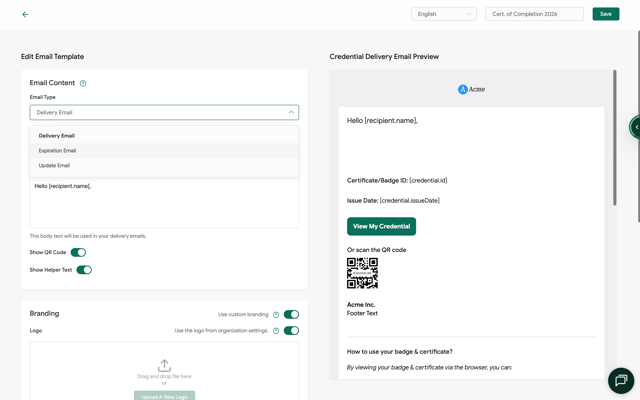
Sertifier can send recipients four kinds of email: the credential delivery email, update notifications, expiry reminders and engagement reminders. This guide shows when each one goes out and where you control it. It also explains the campaign-level Do not send emails switch, which overrides all of them.
At a glance
|
|
When it's sent |
Where you control it |
|---|---|---|
|
Credential delivery email |
When you click Send, or at the scheduled time |
Campaign > Campaign Options (template, sender name, subject, custom domain) |
|
Credential update notifications |
When you change a credential's design, details or recipient attributes |
Organization Settings > Account Preferences |
|
Expiry reminder (automatic) |
Up to 3 emails at set intervals before the expiry date |
Credential Details > Expiry Date |
|
Expiry reminder (manual) |
When you send it from Analytics |
Analytics > Expiry Reminders |
|
Engagement reminder (automatic) |
Up to 3 emails after issuance if the recipient hasn't opened, viewed or shared the credential |
Campaign > Campaign Options > Engagement Reminder Email |
|
Resend (Send Again) |
When you resend a credential |
Analytics > Credentials > Send Again |
1. The Master Switch: Do Not Send Emails
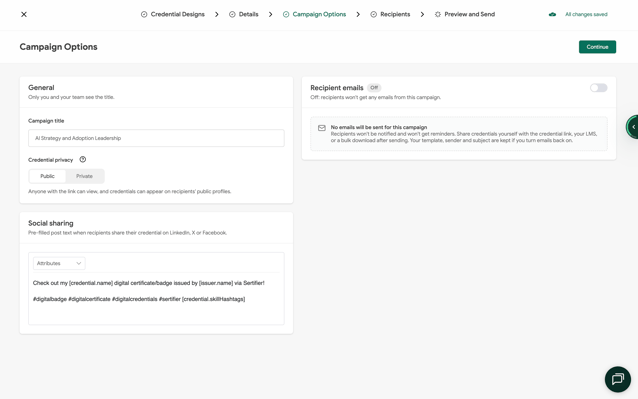
Turn off Recipient Emails in a campaign's Campaign Options to issue its credentials without emailing anyone. Use it when you deliver credentials another way, such as through your LMS, WhatsApp or your own email system, or when you issue credentials only for your records.
While the switch is off, the campaign sends:
- no credential delivery emails
- no expiry reminder emails
- no engagement reminder emails
- no update notification emails
How to turn it off:
- Create a campaign, or open an existing one and click Edit.
- Go to the Campaign Options step.
- Turn off Recipient Emails.
- Finish the remaining steps and click Send. The credentials are issued, but no email goes out.
What changes in Analytics
- Credentials from the campaign show the status Created instead of Delivered or Undelivered. Created means the credential exists but was never emailed. It is not a delivery failure.
- Send Again doesn't work for these credentials while emails are turned off.
- No "email opened" activity is recorded, because no email was sent.
Getting credentials to recipients
With emails off, recipients need another way to reach their credential:
- Share each credential link yourself, or export the list from Analytics > Credentials > Download as Excel File.
- Use Bulk download PDF's in the Credentials report to get the PDFs and send them yourself.
- Recipients can find their credentials on Verified Wallet by signing in with the email address the credential was issued to or by making a search with their email addresses.
2. Credential Delivery Emails
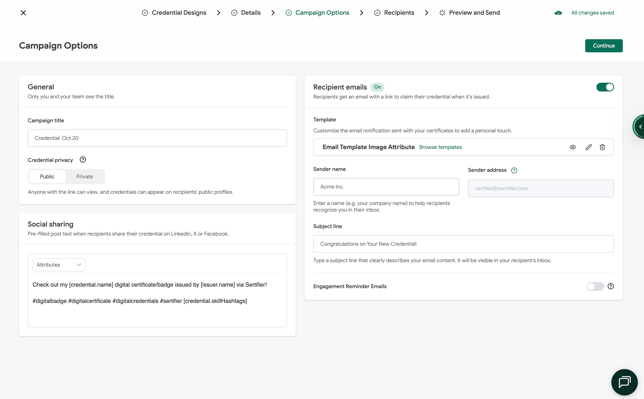
The delivery email tells recipients their credential is ready and links to it. It goes out when you click Send, or at the time you set with Schedule for Later.
You set it up in the campaign's Campaign Options step:
- Email template: pick a saved template, or go to Browse Templates > Create New Email to make one.
Related Article: Emails Templates Complete Guide
- Sender name and Email subject: what recipients see in their inbox.
- Custom email domain: send from your own domain if you've set one up. See Email Domain.
Before sending, the Preview and Send step lets you check each recipient's email, and Send a Test Credential sends a copy to you or a colleague.
Resending a delivery email
Go to Analytics > Credentials, find the recipient and click Send Again. Send Again isn't available for campaigns with Recipient Emails turned off.
Related Article: Can I Resend a Credential?
3. Credential Update Notification Emails
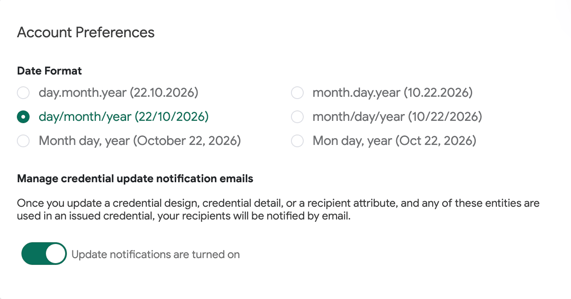
When you change a credential after sending it, Sertifier can email recipients to say it was updated. Changes that trigger this email include a new design, edited credential details (such as a new expiry date) and edited recipient attributes (such as a corrected name).
You control these emails in:
- For your whole organization: go to Organization Settings > Account Preferences and switch Credential update notifications on or off. This applies to every campaign. See Email Update Notifications.
Related Article: Email Update Notifications
4. Expiry Reminder Emails
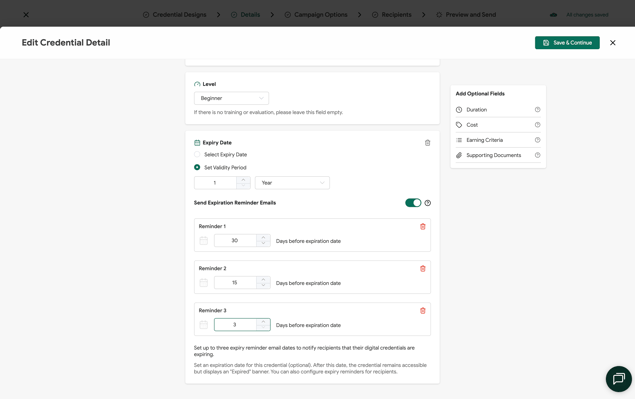
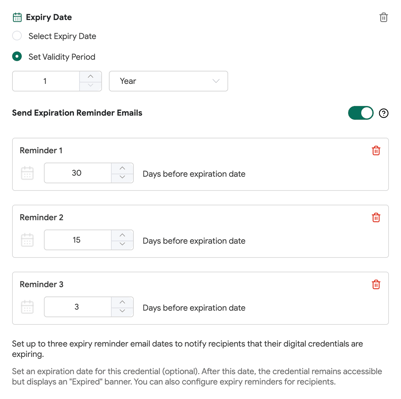
Expiry reminders tell recipients their credential is about to expire, so they have time to renew. You can send them automatically, manually, or both.
Automatic reminders
- When you create or edit the credential, open Credential Details and set an Expiry Date. You can set one date for everyone, or give each recipient their own date by mapping an Excel or CSV column to the Expiration Date attribute in the Recipients step.
- Add up to three reminder emails, each sent a chosen amount of time before the expiry date.
Manual reminders from Analytics
- Go to Analytics > Expiry Reminders.
- Review the list of credentials that are close to expiring.
- Send reminders to the recipients you choose.
Related Article: What Are Expiry Reminder?
Automatic expiry reminders are not sent for campaigns with Recipient Emails turned off.
When a credential expires, the recipient can still open it, but it shows an "Expired" banner.
5. Engagement Reminder Emails
Engagement reminders follow up with recipients who haven't done anything with their credential yet. You can schedule up to three per campaign.
|
Reminder type |
Sent when |
|---|---|
|
Email not opened |
The recipient hasn't opened the delivery email |
|
Credential not viewed |
The recipient hasn't opened their credential |
|
Credential not shared |
The recipient hasn't shared their credential online |
Automatic reminders
- Open the campaign and go to Campaign Options.
- Turn on Engagement Reminder Email.
- Pick the reminder types you want and set when each is sent, for example 3 days and then 7 days after issuance.
Related Articles: Engament Reminder Emails
To customize delivery, expiry reminder or update notification emails, select the corresponding email type when creating or editing an email template.