1. Undo and Redo
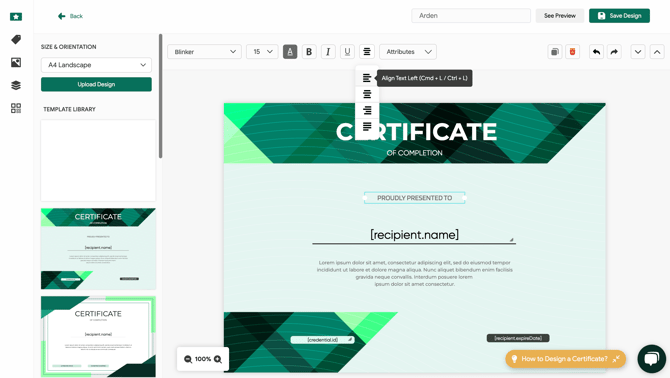
The undo and redo shortcuts allow you to step back or forward through recent changes. This is useful when you need to quickly fix a mistake or restore a previous design element.
- Undo:
- Mac: Cmd + Z
- Windows: Ctrl + Z
- You can also use the Undo button in the toolbar.
- Redo:
- Mac: Cmd + Shift + Z
- Windows: Ctrl + Shift + Z
- The Redo button is available next to the undo option.
2. Copy, Paste, and Cut
You can easily duplicate or move elements within your design using the following shortcuts. These commands apply to text boxes, images, or any design elements on your canvas.
- Copy:
- Mac: Cmd + C
- Windows: Ctrl + C
- Paste:
- Mac: Cmd + V
- Windows: Ctrl + V
- Cut:
- Mac: Cmd + X
- Windows: Ctrl + X
3. Duplicate Selected Object
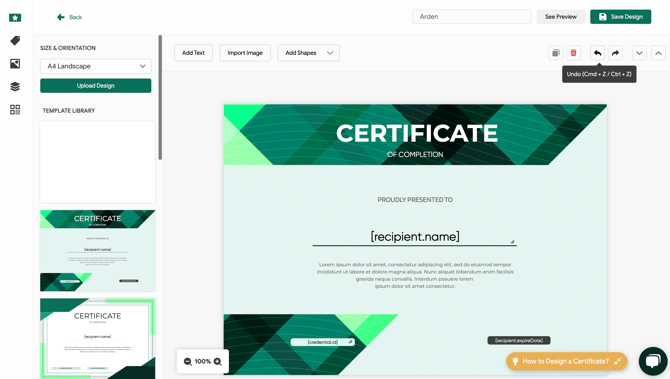
Duplicating objects allows you to quickly create multiple copies of design elements, such as text fields or images, without manually adding each one.
- Duplicate Selected Object:
- Mac: Cmd + D
- Windows: Ctrl + D
- You can also duplicate objects by navigating to Layer -> Duplicate Layer.
4. Delete
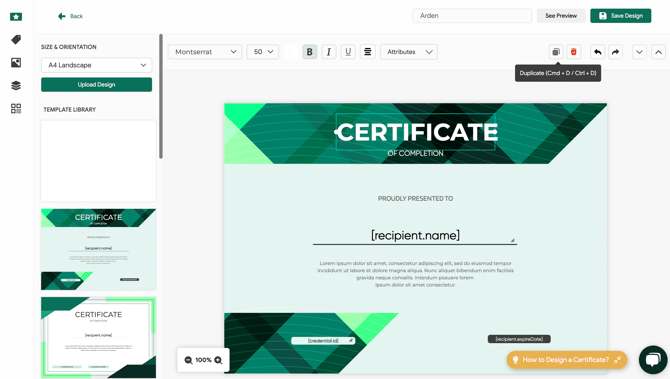
Removing elements from your design is simple. You can use the delete shortcut to remove selected objects from the canvas.
- Delete:
- Mac: Backspace
- Windows: Del
- You can also click the Delete button on the toolbar.

5. Bold, Italic, and Underline Text
Text formatting shortcuts help you modify the appearance of text within your design, making it easy to emphasize or distinguish certain parts of your certificate.
- Bold Text:
- Mac: Cmd + B
- Windows: Ctrl + B
- You can also use the Bold option in the text editor.
- Italic Text:
- Mac: Cmd + I
- Windows: Ctrl + I
- Italics can also be applied via the Italic option in the text editor.
- Underlined Text:
- Mac: Cmd + U
- Windows: Ctrl + U
- The underline function is available in the Text Editor as well.
6. Align Text
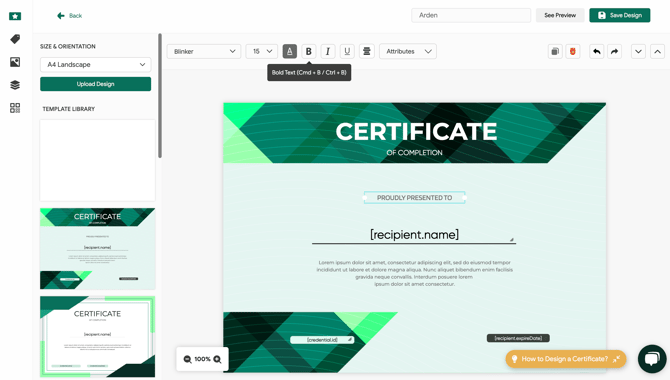
Proper alignment ensures that your text looks clean and professional. The following shortcuts allow you to align your text to the left, center, or right quickly.
- Align Text Left:
- Mac: Cmd + L
- Windows: Ctrl + L
- You can also use the Left Align option in the text editor.
- Align Text Right:
- Mac: Cmd + R
- Windows: Ctrl + R
- The Right Align option is available in the text editor.
- Align Text Center:
- Mac: Cmd + E
- Windows: Ctrl + E
- Center alignment is accessible via the Center Align option in the text editor.