---
title: How to Create Multi-Page Certificate Designs
description: Sertifier allows you to create multi-page certificate designs within a single credential. Learn how to design, manage, and distribute comprehensive multi-page certificates and transcripts within a single credential.
---
[Skip to content](https://help.sertifier.com/how-to-create-multi-page-certificate-designs#main-content)
[Create Support Ticket](https://help.sertifier.com/kb-tickets/new?hsLang=en)
[](https://help.sertifier.com/?hsLang=en)
- [Create Support Ticket](https://help.sertifier.com/migration/kb-tickets/new)
- [FAQ](https://help.sertifier.com/faq)
Open main navigation
Close main navigation
- [Create Support Ticket](https://help.sertifier.com/migration/kb-tickets/new)
- [FAQ](https://help.sertifier.com/faq)
- [Create Support Ticket](https://help.sertifier.com/kb-tickets/new)
- [Login](https://app.sertifier.com/en/login)
[Login](https://app.sertifier.com/en/login)
How can we help you?
- There are no suggestions because the search field is empty.
1. [Help Center](https://help.sertifier.com/?hsLang=en)
2. [Generate Digital Credentials](https://help.sertifier.com/generate-digital-credentials?hsLang=en)
3. [Credential Design](https://help.sertifier.com/generate-digital-credentials?hsLang=en#credential-design)
# How to Create Multi-Page Certificate Designs
## Design, manage, and distribute multi-page certificates within a single credential.
Sertifier allows you to create multi-page certificate designs within a single credential. This feature is ideal for including official transcripts, detailed course modules, or different accredited versions of the same certificate.
### Key Features of Multi-Page Designs
- **Independent Customization:** Each page operates independently. You can apply different backgrounds, custom visual layouts, text content, and dynamic attributes to each page.
- **Flexible Sizing and Orientation:** You can adjust the dimensions and orientation (landscape or portrait) for each page individually.
- **Comprehensive Previews:** Review how each page looks with populated dynamic attributes directly in the designer before issuing.
### Step-by-Step: Creating and Managing Multiple Pages
1. **Open the Designer:** Navigate to **Components \> Credential Designs** (or access the designer directly within a campaign setup) and open your certificate template.
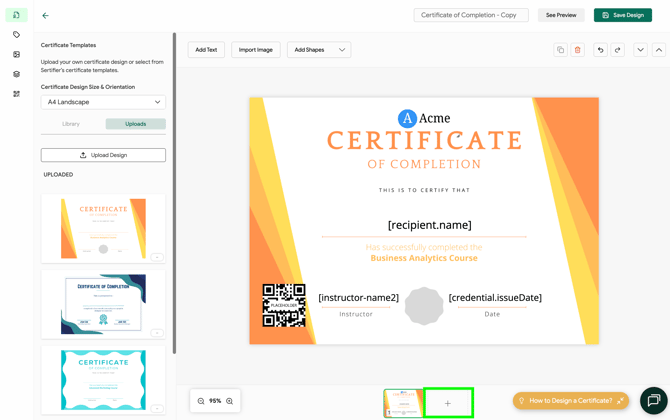
2. **Locate the Page Manager:** Look directly below the main design canvas, where you will see a preview bar showing your current certificate page.
3. **Add, Duplicate, or Remove Pages:**
- Click the **`+` (Add Page)** button to create a fresh, blank canvas.
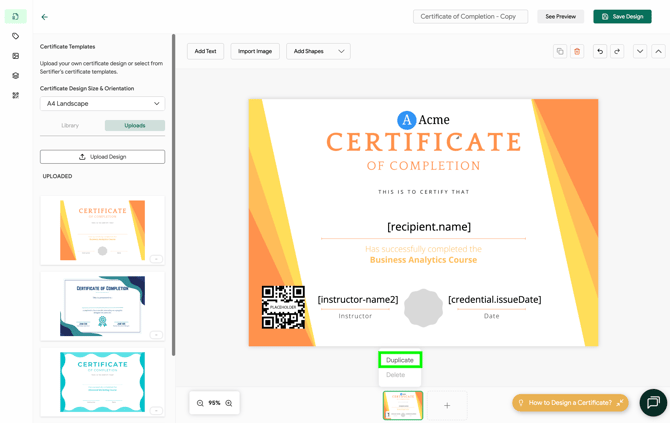
- Click the **Duplicate** option on an existing page to copy its layout and make incremental adjustments.
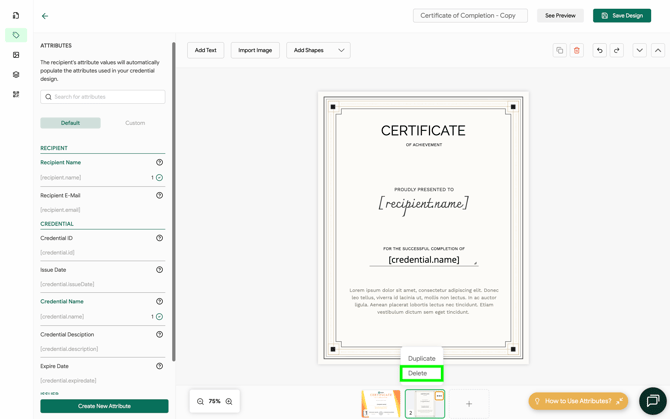
- Click the **Delete** icon on any unused or unwanted page thumbnail to remove it from the design.
4. **Customize Each Canvas:** Select any page from the bottom preview bar to switch between canvases. Add your desired text blocks, images, and attribute placeholders.
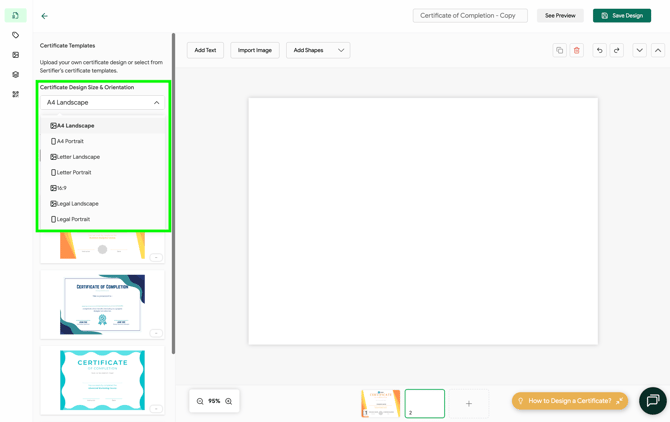
5. **Adjust Page Dimensions (Optional):** If needed, modify the size and orientation settings for the selected page.
### Managing and Sending Multi-Page Designs
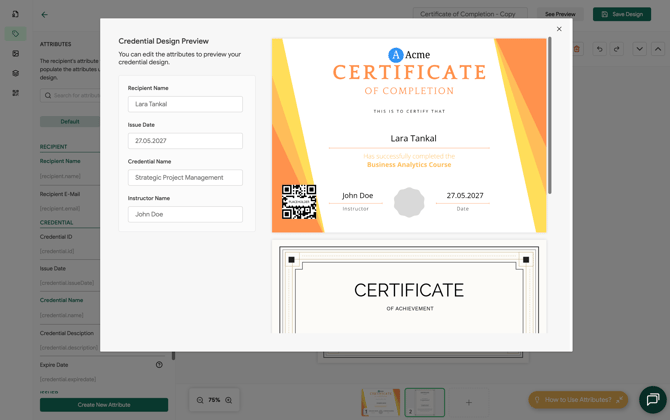
- **Design Preview & Attribute Testing:** While in the certificate designer, use the **Preview** option to test and verify how different attribute values and dynamic data will populate across each individual page.
Related Article: [What Are Attributes and How to Use Them?](https://help.sertifier.com/what-are-attributes-and-how-to-use-them?hsLang=en)
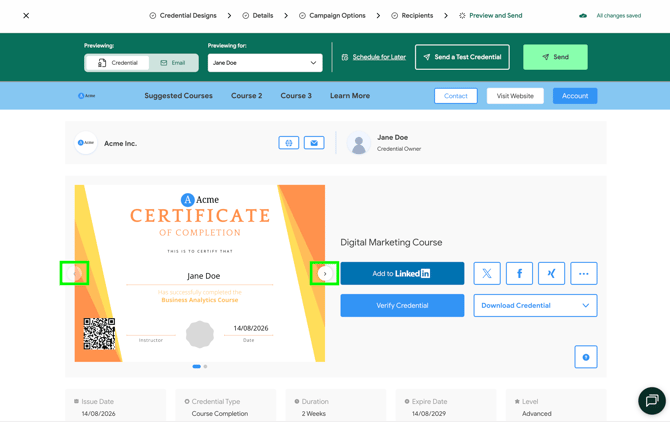
- **Preview & Send Step:** When you attach a multi-page certificate design to a campaign, navigate to the **Preview & Send** step to review individual pages and verify how all recipient attributes populate across the entire document set.
Related Article: [How to Create a Campaign?](https://help.sertifier.com/how-to-create-a-campaign?hsLang=en)
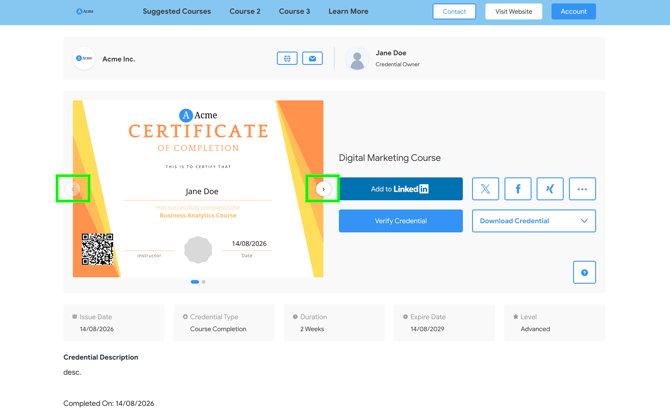
- **Recipient Experience:** On the live credential verification page, recipients can seamlessly toggle between the different pages to view, download, or share specific pages as needed.
Multi-page certificate designs give you the flexibility to issue comprehensive, accredited documentation alongside your core credential in one seamless package. By utilizing customizable pages and dynamic attributes, you can provide recipients with detailed transcripts, supplementary course data, or multi-version certificates without adding complexity to your distribution process.
Related Article: [Credential Designs Complete Guide](https://help.sertifier.com/credential-design-complete-guide?hsLang=en)
- [Get Started](https://help.sertifier.com/get-started?hsLang=en#main-content)
- [Your Subscription](https://help.sertifier.com/get-started?hsLang=en#your-subscription)
- [Create & Send Credentials](https://help.sertifier.com/get-started?hsLang=en#create-send-credentials)
- [Track Your Credentials](https://help.sertifier.com/get-started?hsLang=en#track-your-credentials)
- [Connect](https://help.sertifier.com/get-started?hsLang=en#connect)
- [Account Management](https://help.sertifier.com/account-management?hsLang=en#main-content)
- [Organization Settings](https://help.sertifier.com/account-management?hsLang=en#organization-settings)
- [Subscriptions](https://help.sertifier.com/account-management?hsLang=en#subscriptions)
- [Credential Website](https://help.sertifier.com/account-management?hsLang=en#credential-website)
- [Plans & Payment](https://help.sertifier.com/account-management?hsLang=en#plans-payment)
- [Analytics](https://help.sertifier.com/account-management?hsLang=en#analytics)
- [Privacy](https://help.sertifier.com/account-management?hsLang=en#privacy)
- [Utilizing Your Credentials](https://help.sertifier.com/utilizing-your-credentials?hsLang=en#main-content)
- [Verifying and Managing Your Credentials](https://help.sertifier.com/utilizing-your-credentials?hsLang=en#verifying-and-managing-your-credentials)
- [Sharing and Displaying Your Credentials](https://help.sertifier.com/utilizing-your-credentials?hsLang=en#sharing-and-displaying-your-credentials)
- [Using and Customizing Verified Wallet](https://help.sertifier.com/utilizing-your-credentials?hsLang=en#using-and-customizing-verified-wallet)
- [General Recipient FAQs](https://help.sertifier.com/utilizing-your-credentials?hsLang=en#general-recipient-faqs)
- [Generate Digital Credentials](https://help.sertifier.com/generate-digital-credentials?hsLang=en#main-content)
- [Create, Edit and Send Credentials](https://help.sertifier.com/generate-digital-credentials?hsLang=en#create-edit-and-send-credentials)
- [Credential Design](https://help.sertifier.com/generate-digital-credentials?hsLang=en#credential-design)
- [Credential Details](https://help.sertifier.com/generate-digital-credentials?hsLang=en#credential-details)
- [Email Templates](https://help.sertifier.com/generate-digital-credentials?hsLang=en#email-templates)
- [Recipients](https://help.sertifier.com/generate-digital-credentials?hsLang=en#recipients)
- [Attributes](https://help.sertifier.com/generate-digital-credentials?hsLang=en#attributes)
- [Collections](https://help.sertifier.com/generate-digital-credentials?hsLang=en#collections)
- [Pathways](https://help.sertifier.com/generate-digital-credentials?hsLang=en#pathways)
- [Integrations](https://help.sertifier.com/integrations?hsLang=en#main-content)
- [REST API](https://help.sertifier.com/integrations?hsLang=en#rest-api)
- [SSO](https://help.sertifier.com/integrations?hsLang=en#sso)
- [Zapier](https://help.sertifier.com/integrations?hsLang=en#zapier)
- [Zoom](https://help.sertifier.com/integrations?hsLang=en#zoom)
- [Canvas](https://help.sertifier.com/integrations?hsLang=en#canvas)
- [Moodle](https://help.sertifier.com/integrations?hsLang=en#moodle)
- [Mini Course Generator](https://help.sertifier.com/integrations?hsLang=en#mini-course-generator)
- [Thinkific](https://help.sertifier.com/integrations?hsLang=en#thinkific)
- [Tutor LMS](https://help.sertifier.com/integrations?hsLang=en#tutor-lms)
- [LearnDash](https://help.sertifier.com/integrations?hsLang=en#learndash)
- [Adobe Learning Manager](https://help.sertifier.com/integrations?hsLang=en#adobe-learning-manager)
- [Degreed](https://help.sertifier.com/integrations?hsLang=en#degreed)
- [RingCentral](https://help.sertifier.com/integrations?hsLang=en#ringcentral)
- [Absorb LMS](https://help.sertifier.com/integrations?hsLang=en#absorb-lms)
- [Pabbly Connect](https://help.sertifier.com/integrations?hsLang=en#pabbly-connect)
- [GoHighLevel](https://help.sertifier.com/integrations?hsLang=en#gohighlevel)
- [Enocta](https://help.sertifier.com/integrations?hsLang=en#enocta)
- [N8N](https://help.sertifier.com/integrations?hsLang=en#n8n)
- [Make](https://help.sertifier.com/integrations?hsLang=en#make)
- [TypeForm](https://help.sertifier.com/integrations?hsLang=en#typeform)
- [Salesforce](https://help.sertifier.com/integrations?hsLang=en#salesforce)
- [Europass](https://help.sertifier.com/integrations?hsLang=en#europass)
- [FAQ](https://help.sertifier.com/faq?hsLang=en#main-content)
- [Issuing Digital Credentials](https://help.sertifier.com/faq?hsLang=en#issuing-digital-credentials)
[](https://sertifier.com/?hsLang=en)
Copyright © 2025, Sertifier