
Resumes and Disclosures in Verified allow you to present your credentials in a structured, professional, and secure way. Instead of sharing individual certificates one by one, you can group selected credentials together and control how they are viewed.
This feature is especially useful when you want to:
-
Apply for a job and share a curated set of relevant credentials
-
Submit verified achievements to universities or training providers
-
Provide proof of qualifications to employers or clients
-
Share credentials securely for a limited period of time
-
Create a professional portfolio backed by verified digital records
With Resumes, you can build a permanent, shareable showcase of your achievements.
With Disclosures, you can securely grant time-based access to selected credentials.
Creating and Sharing a Resume
-
Log in to your Verified account.
-
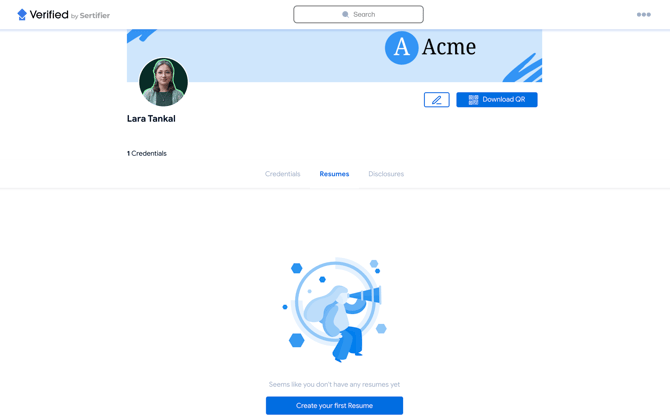
Navigate to the Resumes tab and click Create Your First Resume.
-
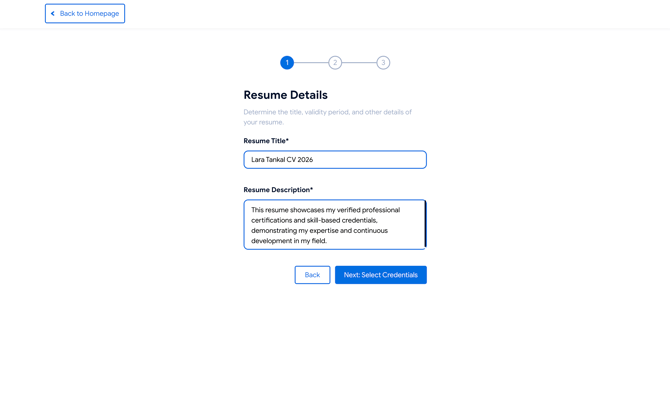
Enter a resume title and description.
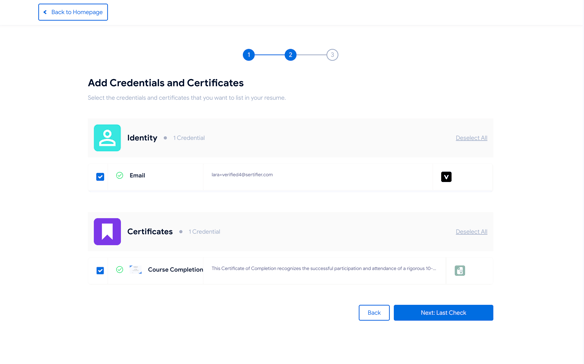
- Select the credentials you’d like to include. You can add:
-
Identity credentials
-
Certificates
-
Badges
-
-
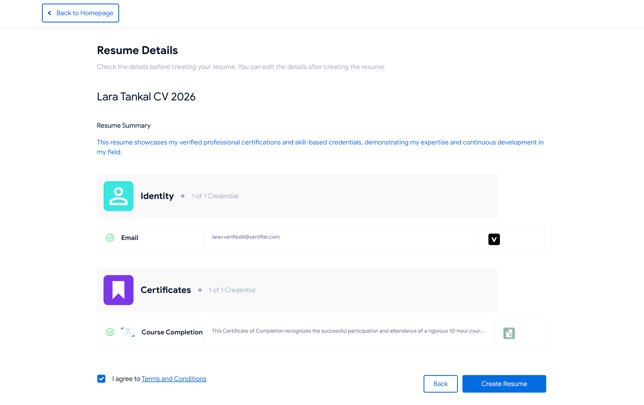
Review the details and click Create Resume.
Sharing Your Resume
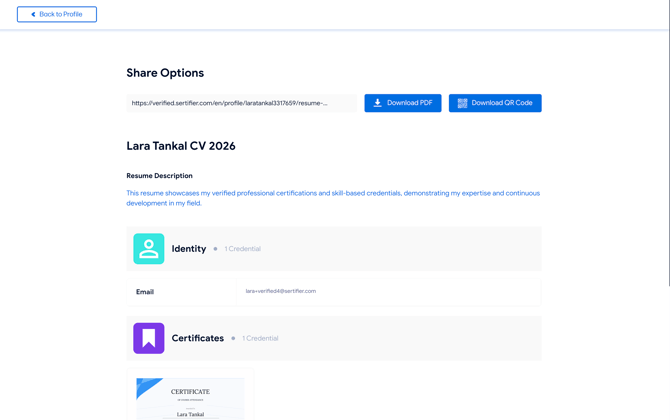
Once your resume is created, you can share it in multiple ways:
-
Copy a shareable link
-
Download the resume as a PDF
-
Download a QR code that directs viewers to the resume page
Creating and Sharing a Disclosure
Disclosures allow you to securely share selected credentials with third parties for a limited time.
-
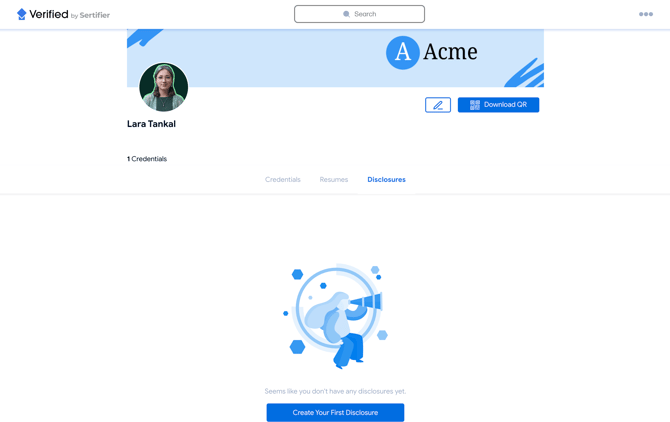
From your Verified profile, switch to the Disclosures tab.
-
Click Add New Disclosure.
-
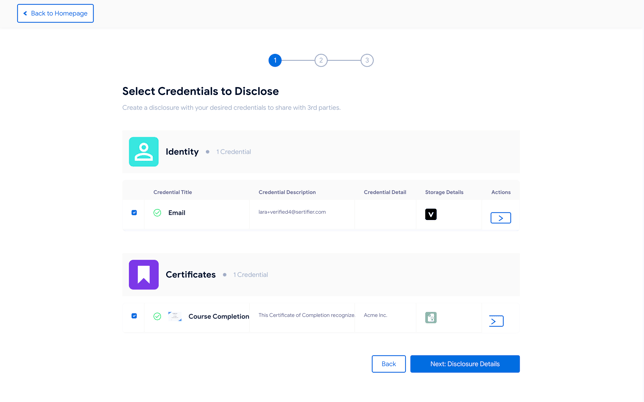
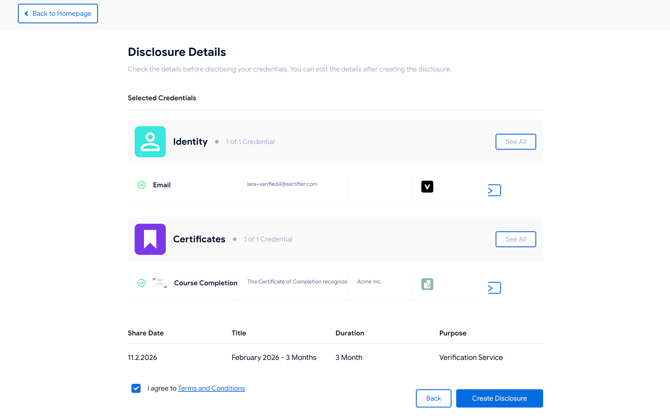
Choose the credentials you want to disclose.
-
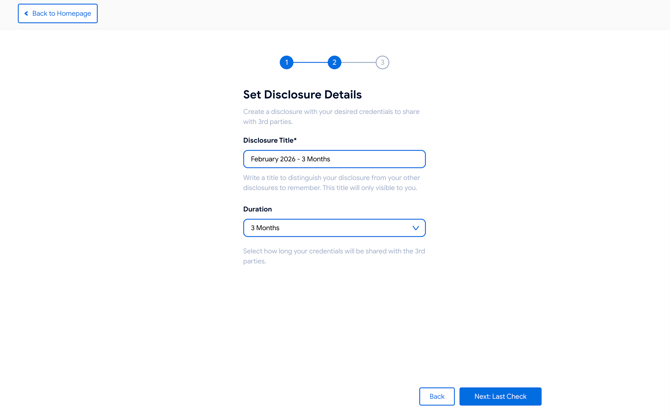
Enter a disclosure title and select how long the credentials should be accessible.
-
Review the details and click Create Disclosure.
Sharing a Disclosure
After creating a disclosure, you can:
-
Copy the disclosure link to share it securely
-
Download a QR code for quick access to the disclosure page
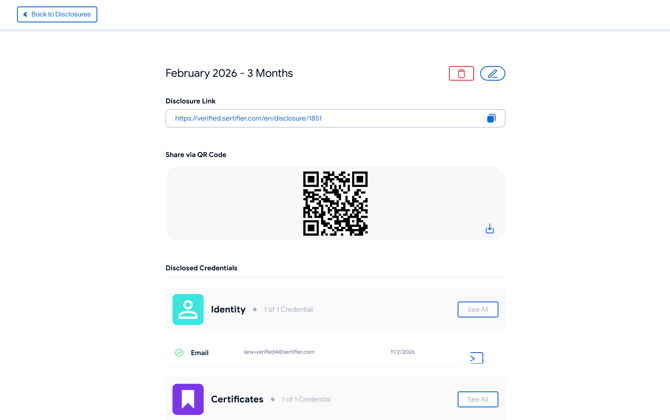
Disclosures are ideal when you need to share credentials temporarily while keeping full control over visibility.